We use cookies to improve your experience on our site. Please accept cookies for optimal performance.


601 & 612, The Times square Arcade, Near Baghban party plot, Thaltej - Shilaj Road, Thaltej, Ahmedabad, Gujarat - 380059

Kudos Korner is an app that lets you nominate your friends, teammates, or even yourself for different awards. It offers several features like categories, nominee tracking, reports analytics, and many more that make the nomination process simple, structured, and effective.
1. Nomination Submission
2. Award Categories
3. Comprehensive Nominee Tracking
4. Achievement and Certification Association
5. Real-Time Status and Updates
6. Search and Filter Options
7. Pagination for Large Datasets
8. Easy Navigation and User Interface
9. Export Options
10. Admin Panel for Award Results
11. Time-Based Filtering
12. Multi-Role Access
13. Suggestions & Feedback
14. Reporting and Analytics (Admin-Specific)
15. Notification System
This platform has two panels: Admin and User.
Admin can manage and control everything about the application while the user panel is limited to user-level features like adding new nominations, tracking a list of available nominations, past nominations, etc.
Given below is the user panel:
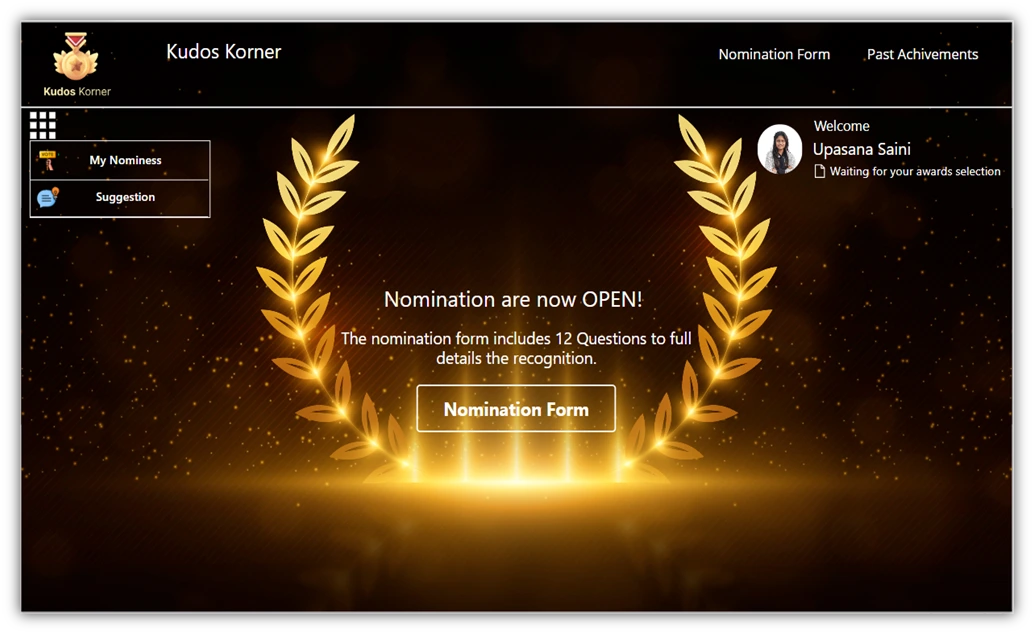
And here is the Admin panel.
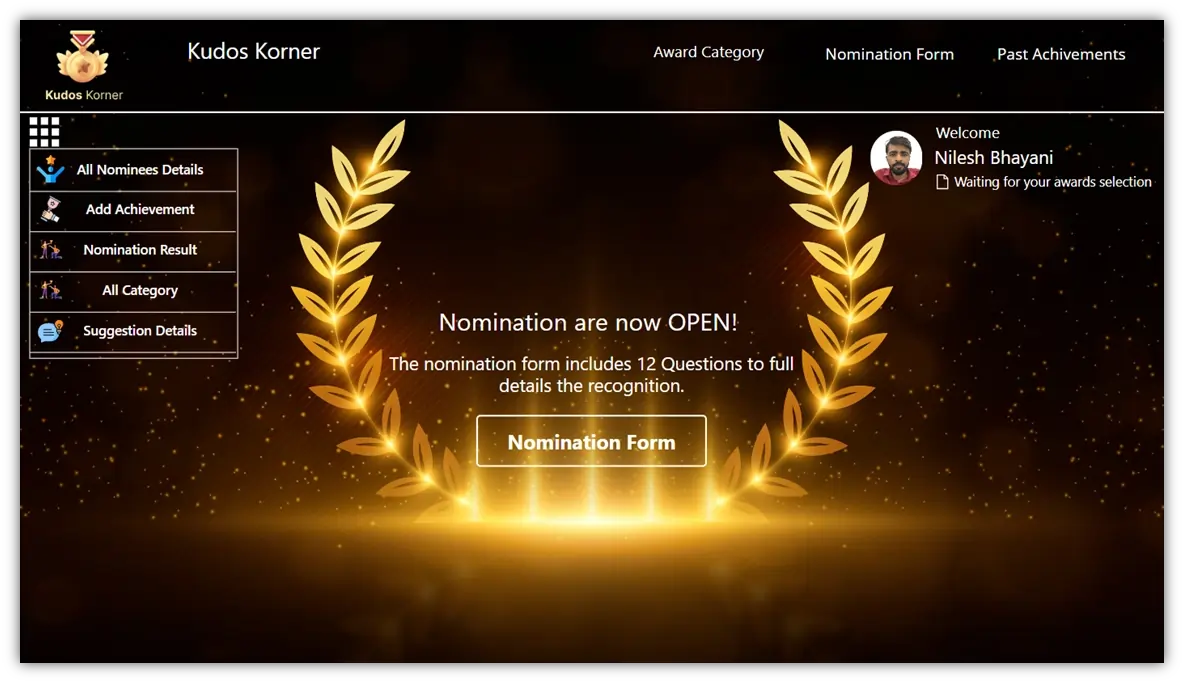
Kudos Korner includes the following capabilities:
Given below are the key modules you will find in Kudos Korner.
You’ll find the nomination form clean and intuitive, making it easy for you to fill in the required information without any confusion.
You can select the award category, quarter, and nominee type using drop-down menus, ensuring consistency and reducing the chance of manual entry errors.
You have the option to input relevant certifications or achievements associated with the nominee, adding extra value to your nomination.
You can track the status of your submitted forms to see if they are accepted, rejected, or pending review, providing you with transparency throughout the process.
If needed, you can save your progress and return later, allowing you to gather any additional information before final submission.
Some fields may include character limits or word counts to help you focus on key achievements and encourage concise, well-thought-out nominations.
Before submitting, you can preview your nomination to make sure all information is accurate and complete.
After submitting, you’ll receive an email confirmation summarizing your nomination details, giving you an extra layer of documentation.
The form is mobile-friendly, allowing you to complete and submit nominations from your smartphone or tablet.
The form may include features like keyboard navigation, text-to-speech compatibility, and a simplified layout to accommodate users with disabilities.
You can add nominations from the Award nomination form, and it looks like this.
You need to select the nominator, the specific award, and the corresponding certificates that are relevant.
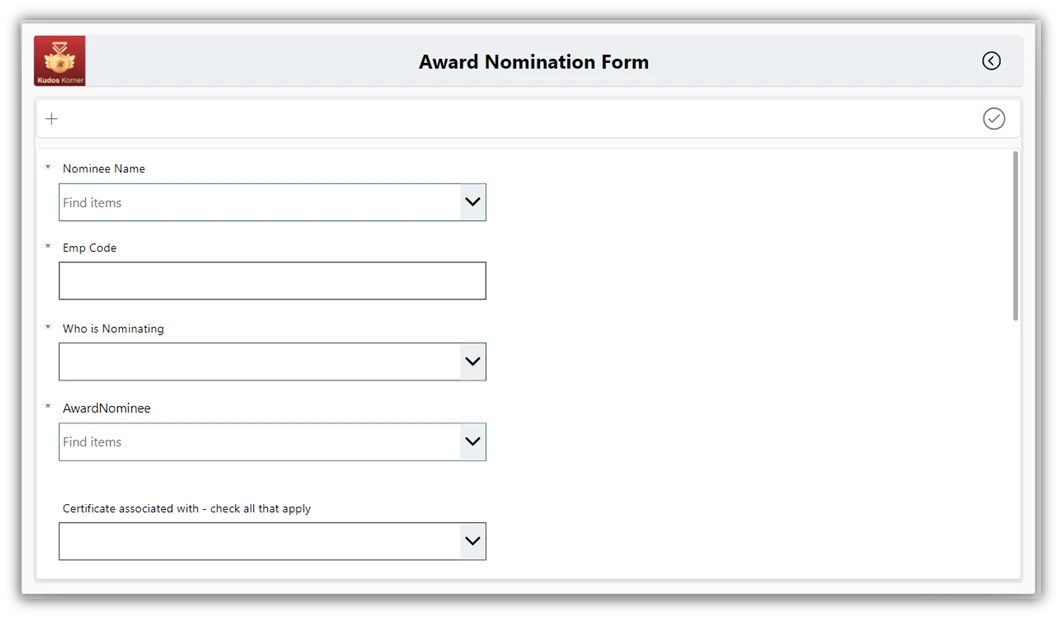
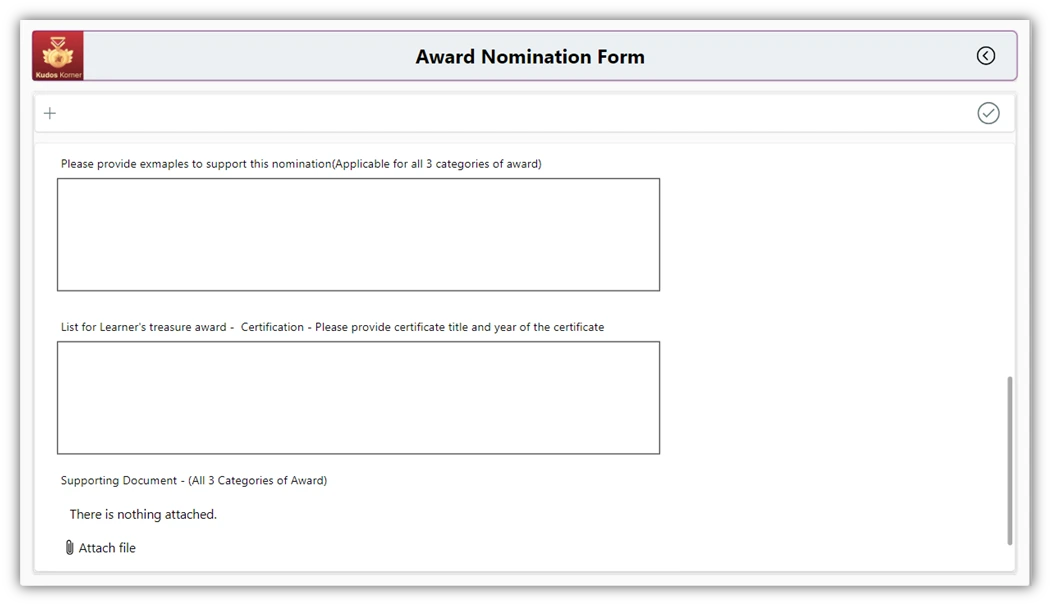
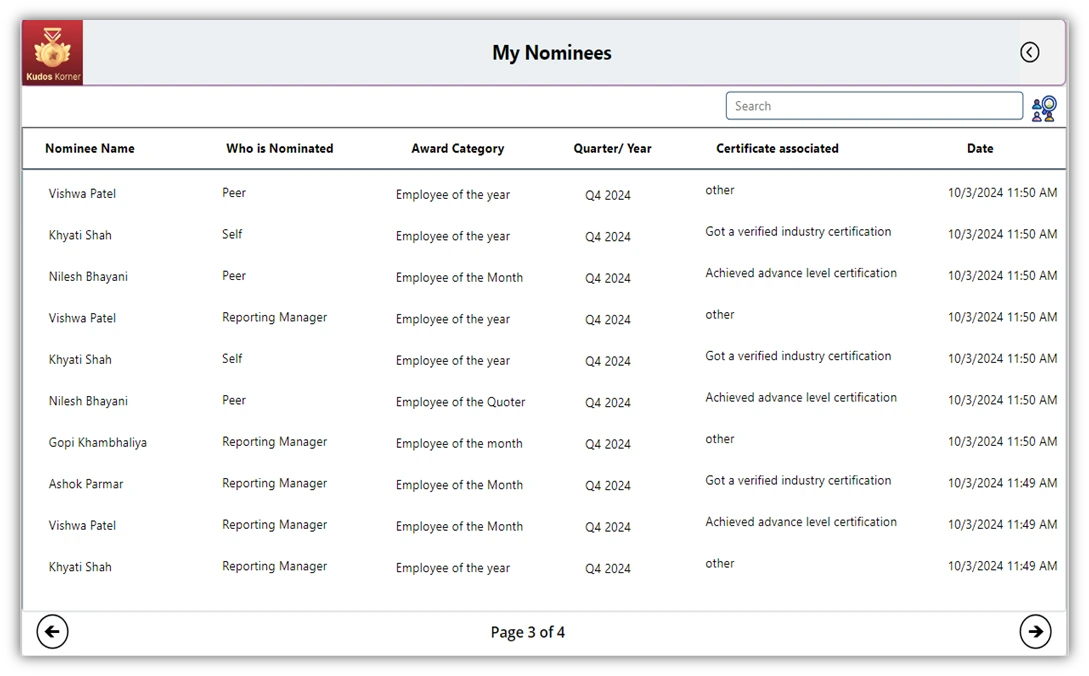
You can also check the list of nominations that you have given as shown in the following window.
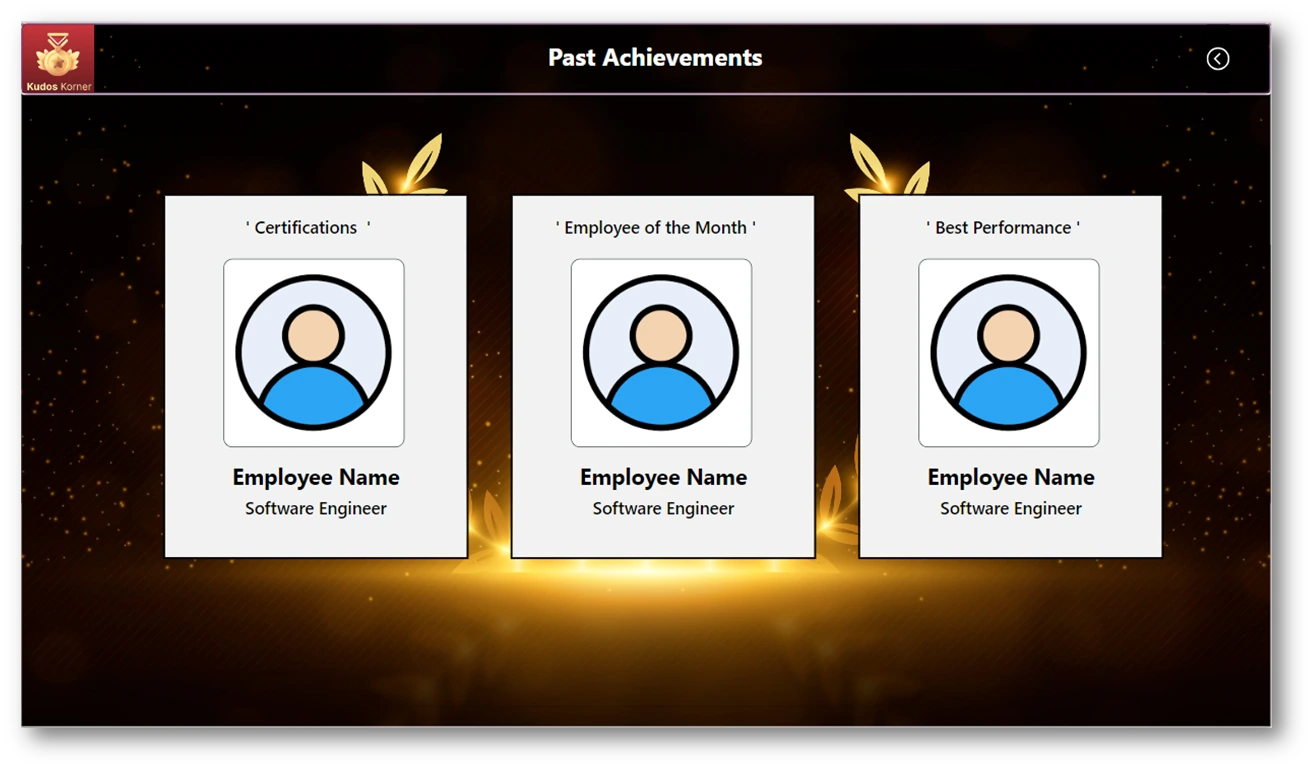
In Kudos Korner, you can discover past achievements and review their details. This is useful for managers to identify potential candidates offering them growth opportunities.
The Award Category feature in the Kudos Korner app helps to organize how we recognize various employee achievements and contributions.
It sorts awards into specific categories like performance, teamwork, innovation, leadership, and other important values of the organization.
Awards are of three categories:
This award goes to people or teams who have earned important certifications, showing their skills and dedication to improving.
Given to someone new who is showing great promise and making a big impact early in their career.
This award recognizes individuals or teams who provide excellent service, keeping clients happy and building strong relationships.
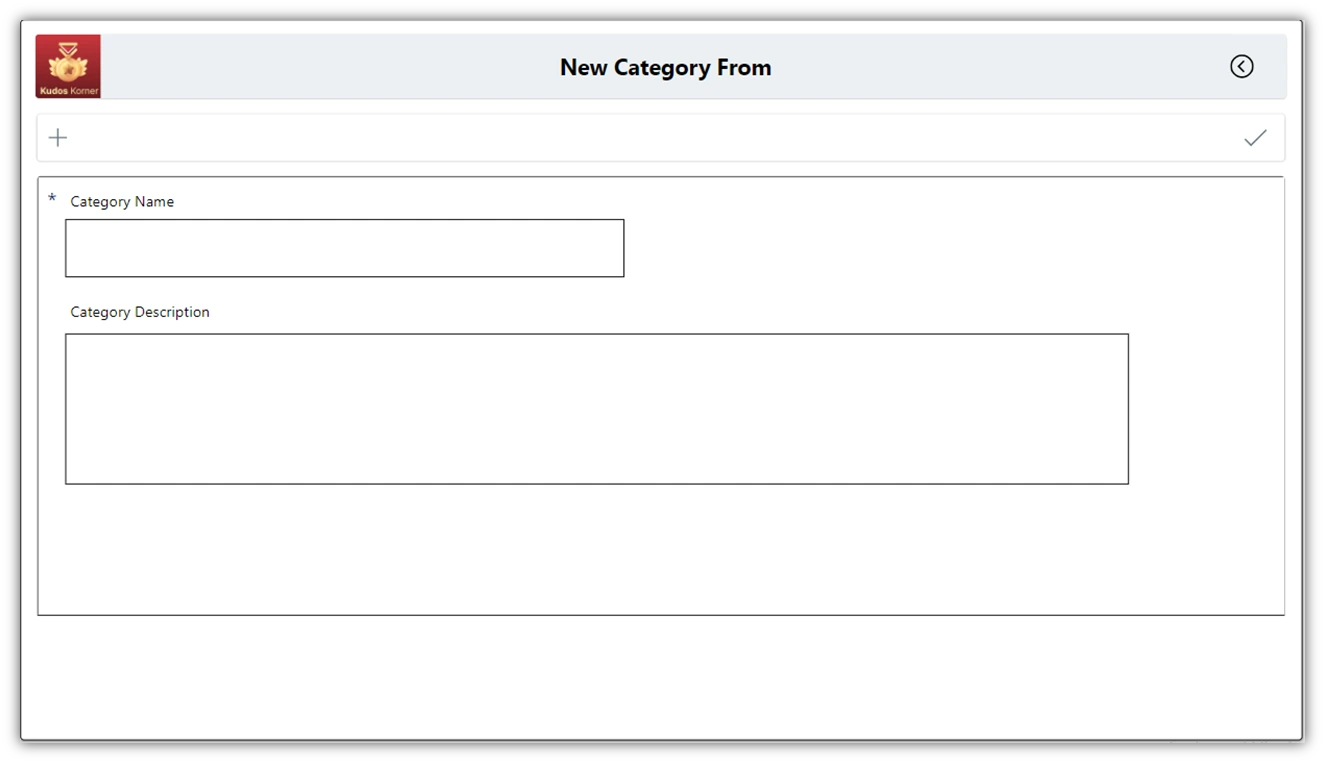
You will find a new category form window in which you have to add to Category name and its brief description. Here is the reference.
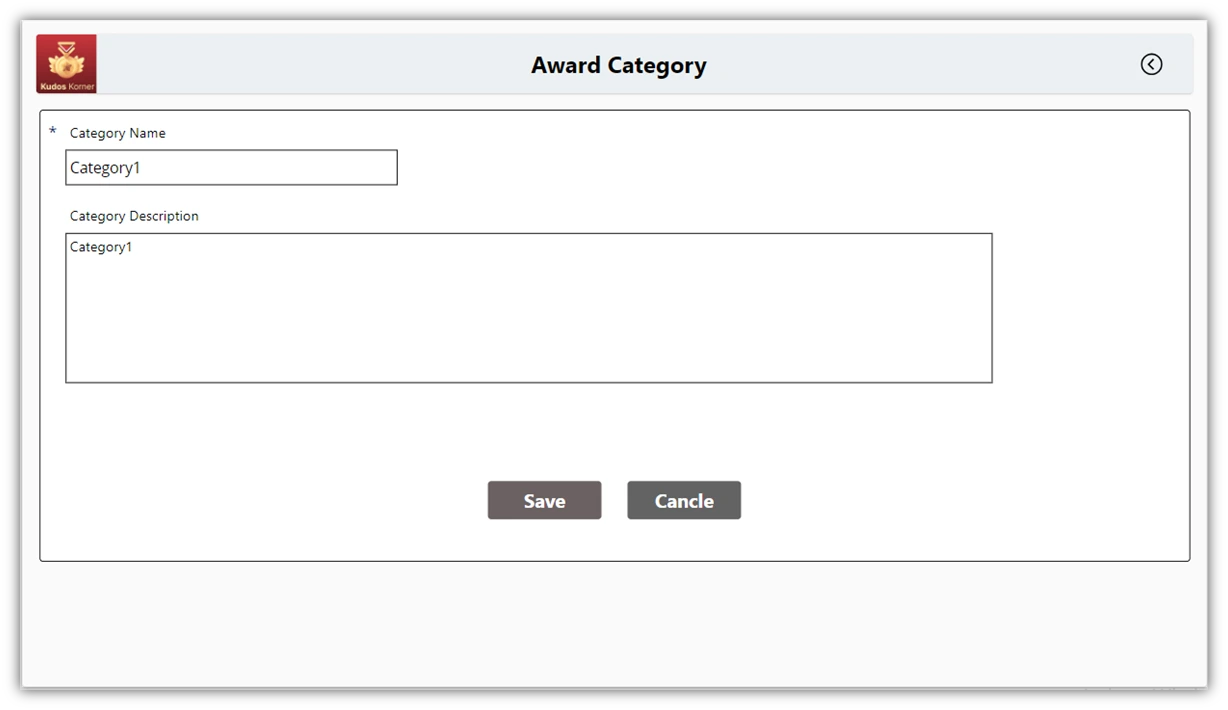
The award category window would look something like this. Here you will find the name of the award with its brief description.
You can also check the list of various awards added. Here is the reference window.
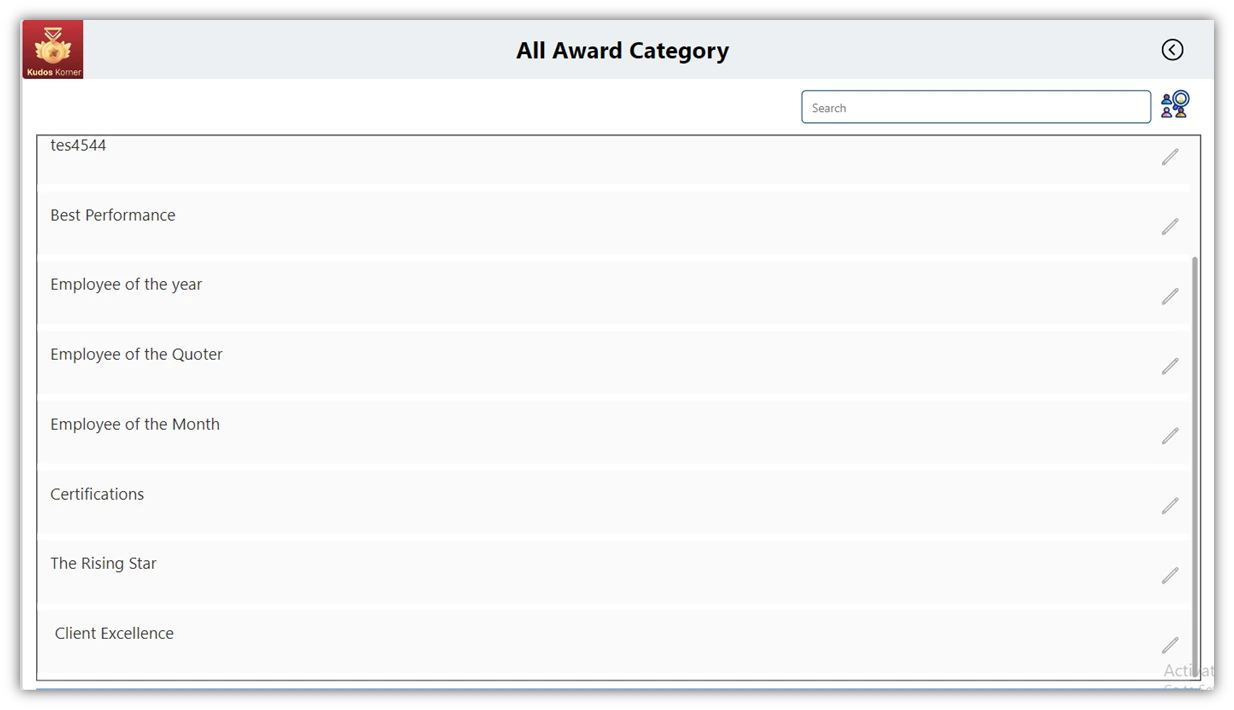
You can manage the list of achievements, and update them as required. When you click on Achievements page, it will display the following window.
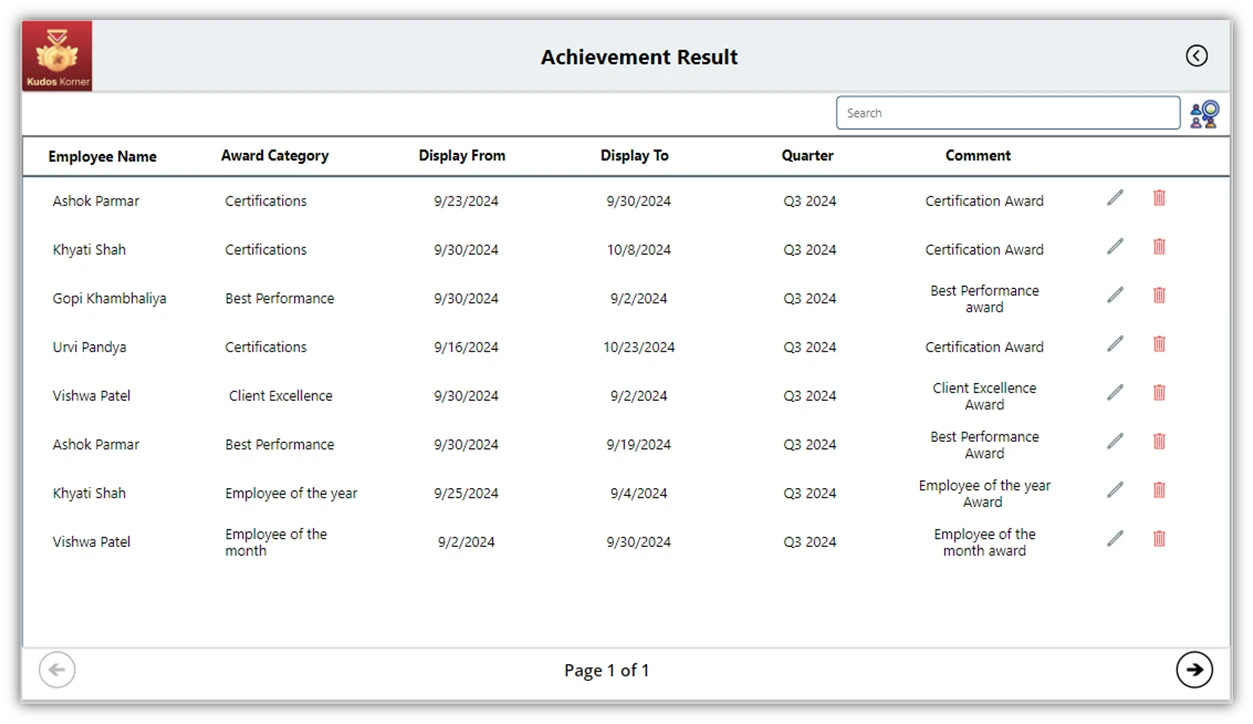
You can add or update the feats as per your requirements using the Achievements Form.
Given below is the screen for adding New achievements.
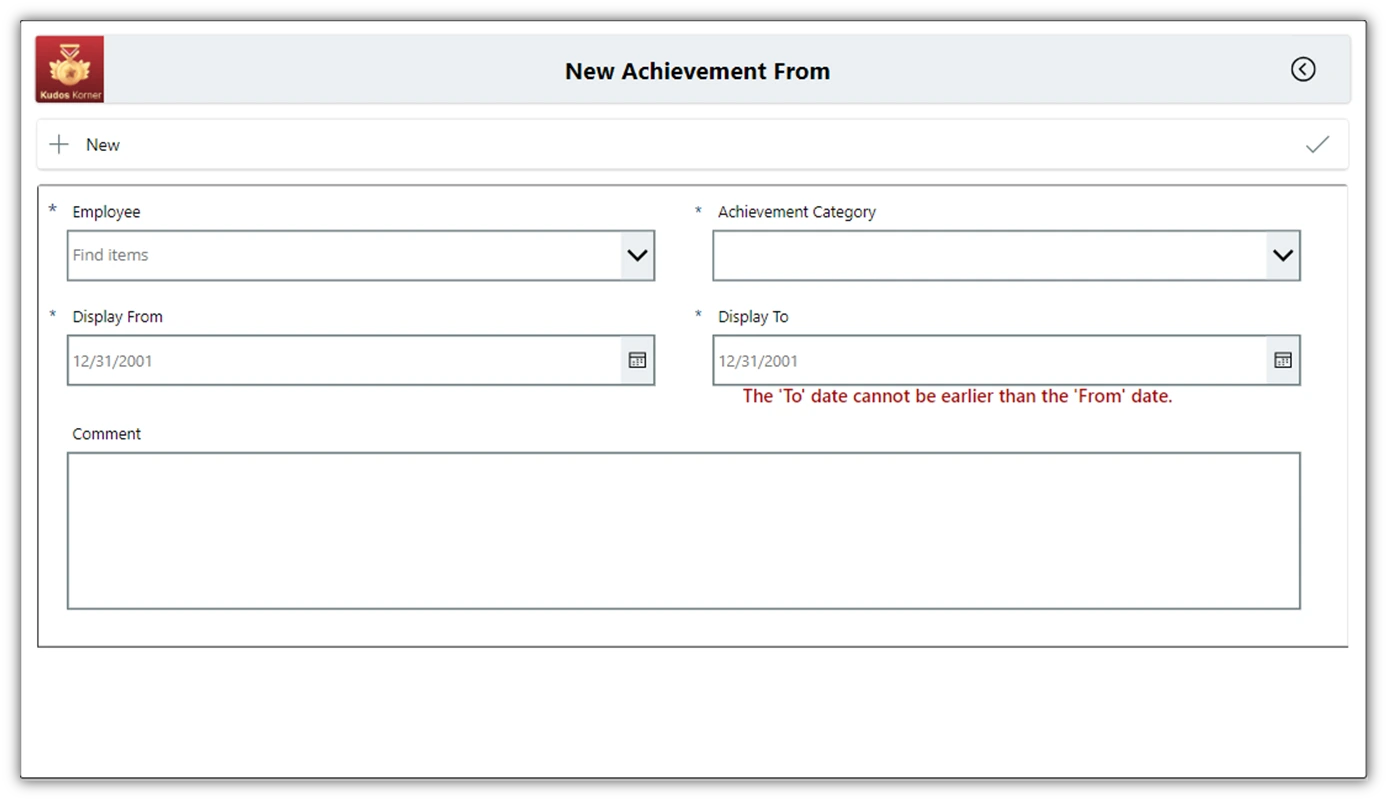
And here is the screen for updating your existing achievements.

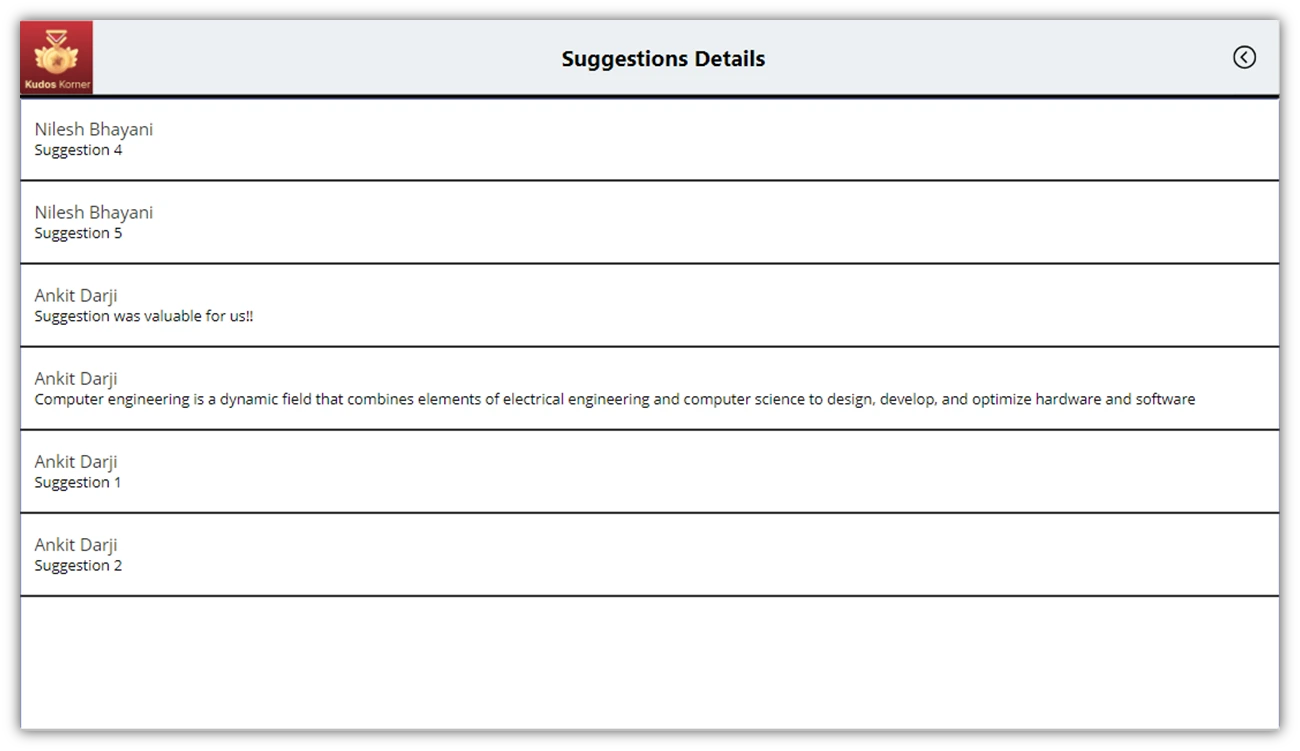
- The Suggestion Page is where you add your feedback or improvement suggestions for the organization. This helps them make smart decisions making the workplace lively and flexible.
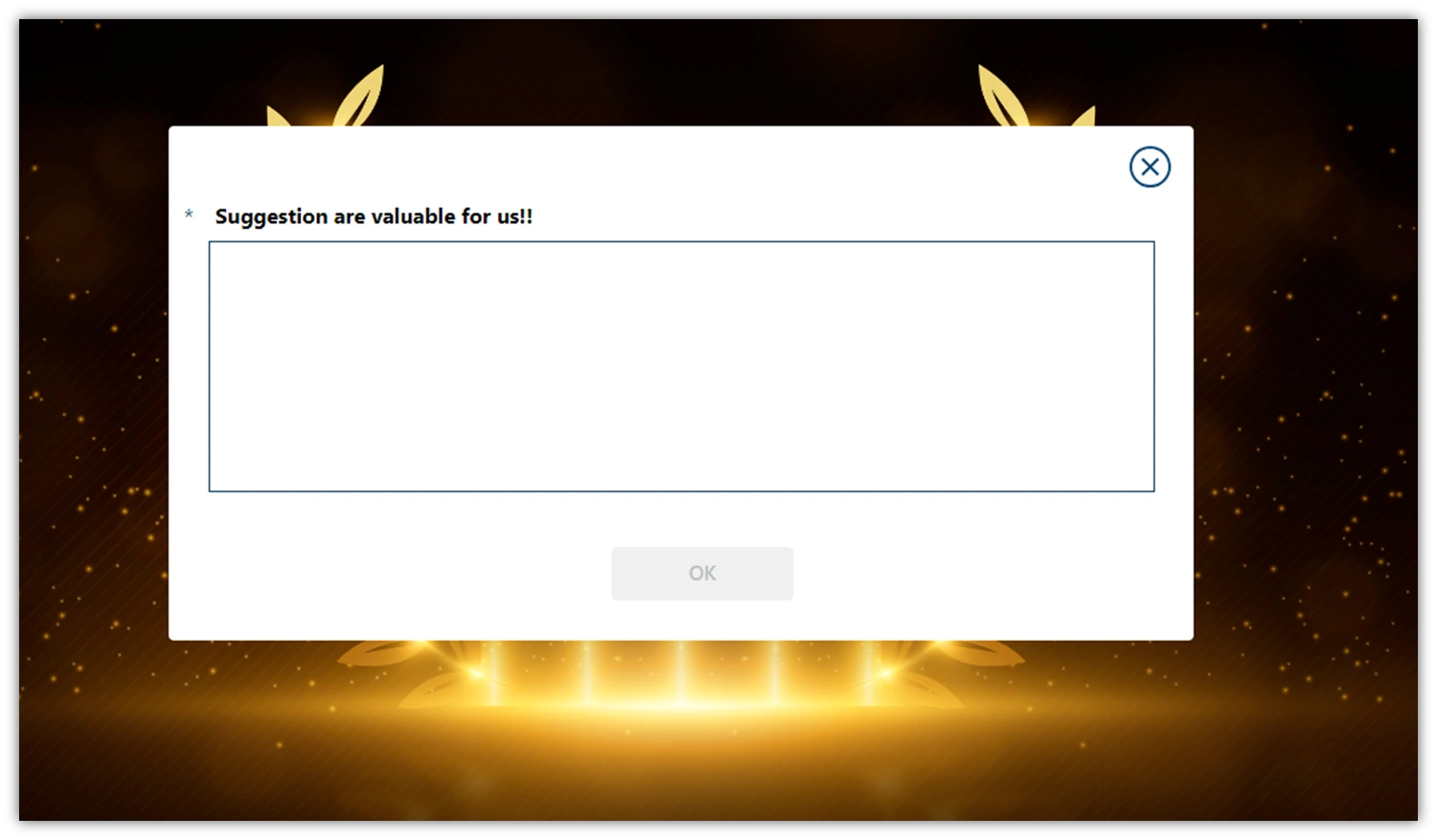
Admin can control the list of suggestions added by the users. Here is the appearance of that screen.